Custom dashboards and wall tablets
Besides the standard Overview, Alerts and Energy pages, you can build saved dashboards: pages made of cards that you choose, place and size. Each one has its own name, style and rooms. Use them for a kitchen tablet that shows the clock, the alerts and the downstairs lights, or a bedside display that shows one room.
Only the installer view can edit dashboards. Homeowners can open them and choose one for their own device.
The starting set
The first time the dashboard opens, the driver builds a starting set from the house, so there's something to work from:
| Dashboard | Cards |
|---|---|
| Home | The house summary, a card for each room that has devices, alerts and the energy total. |
| Installer | The house summary, alerts, processor health and the energy chart. |
| One per room | Added when the house has eight rooms or fewer. |
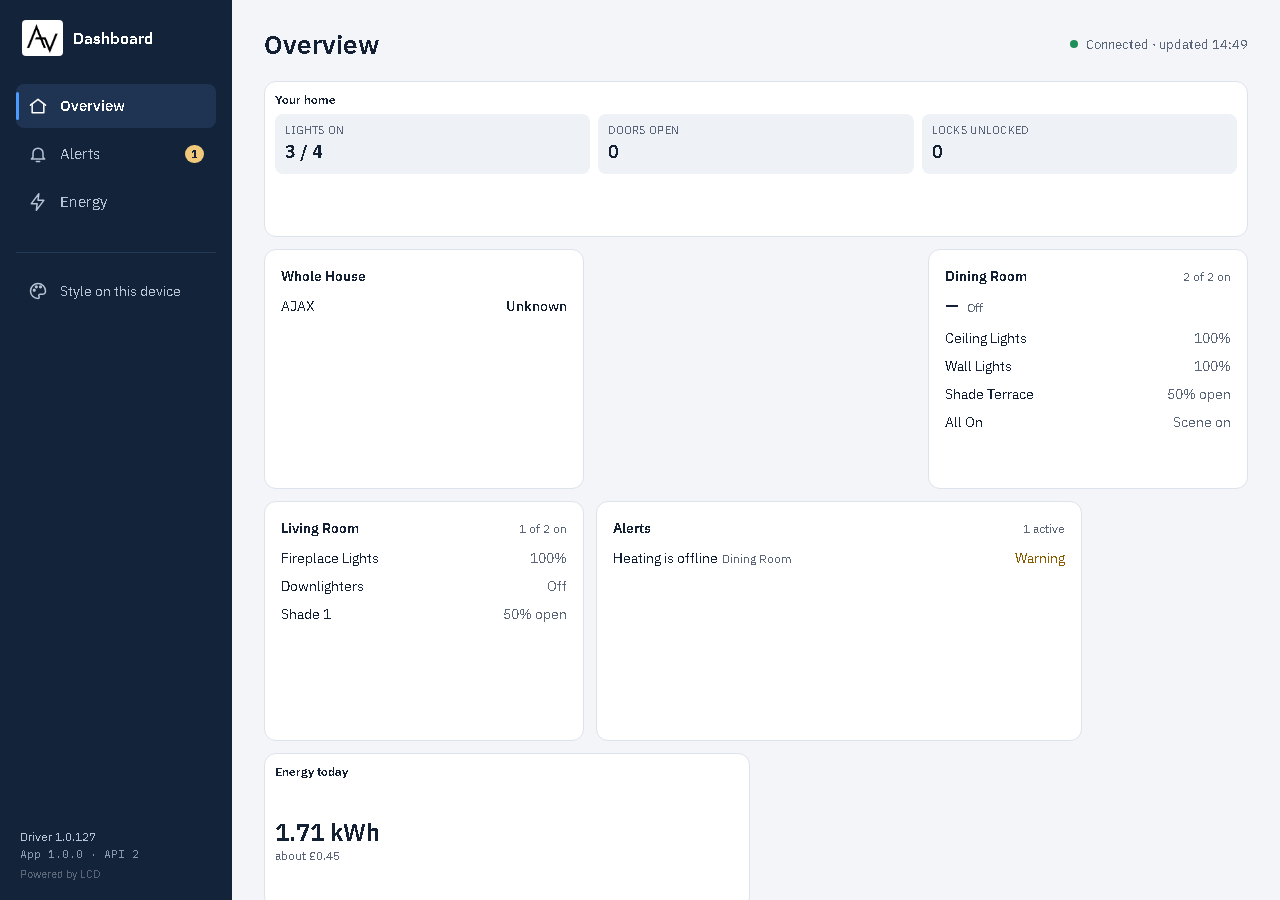
Change or delete any of them. The starting set isn't built again once you've saved a change.
Editing dashboards
-
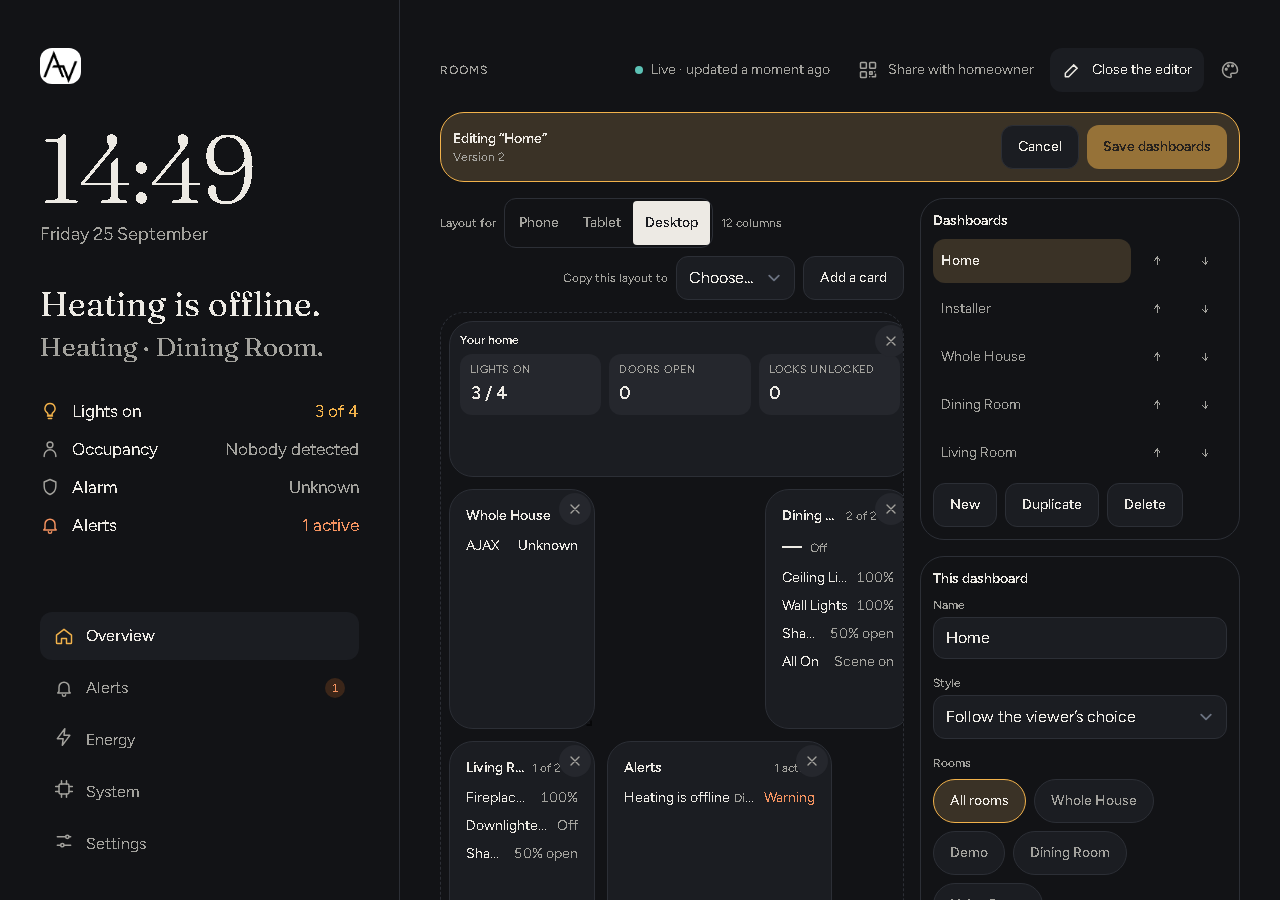
In the installer view, select Edit dashboards.
-
The Dashboards panel lists every saved dashboard. Select one to edit it, or use New, Duplicate or Delete. The arrows change the order they're listed in.
-
Under This dashboard, set:
Field Notes Name 1 to 40 characters. Renaming doesn't break links to the dashboard. Style Follow the viewer's choice, or one of the four styles. Rooms The rooms the dashboard's cards cover. No rooms chosen means the whole house. Open this dashboard by default Tick For the homeowner, For the installer or both, to open it in place of the standard pages. Wall tablet See Wall tablets. -
Add, move and size the cards (see below).
-
Select Save dashboards. Cancel throws your changes away.
If someone else saved the dashboards while you were editing, your save is refused. Select Reload the driver's copy and make your changes again.
Links and QR codes that open a deleted dashboard stop working. They show the standard pages instead, with a note that the dashboard has gone.
Cards
Select Add a card and pick one. It goes at the foot of the layout at its usual size. Drag a card to move it, and drag its bottom-right corner to resize it. Select a card to open Card settings, and use its remove control to take it off.
| Card | Shows | Options |
|---|---|---|
| House summary | The summary counts for the dashboard's rooms. | |
| Room | Everything in one room. | Room |
| Lights | Lights and their levels. | Rooms, Only lights that are on |
| Locks, Doors, Occupancy, Climate, Media | That kind of device. | Rooms |
| Scenes | Scenes. | Rooms, Only active scenes (on to start with) |
| Alerts | Active alerts. | How many to list (1 to 20) |
| Energy total, Energy chart | The energy estimate. | Period |
| Top loads | The loads that used the most. | Period, How many to list |
| Lights left on | Lights left on in empty rooms or overnight. | Days back (1 to 30), How many to list |
| Processor | Processor health. Shows in the installer view only. | |
| Clock | The time. | Show seconds, Show the date |
| Note | Your own text, up to 500 characters, for example the guest Wi-Fi details. | Text |
| Logo | Your logo from Branding. | Show the company name |
Most cards also take a Title of up to 40 characters. A card's Rooms option narrows it further; with no rooms chosen it covers the dashboard's rooms.
Phone, tablet and desktop layouts
Each dashboard has three layouts, chosen under Layout for: Phone (4 columns), Tablet (8 columns) and Desktop (12 columns). The browser uses the one that fits its screen. Moving or resizing a card changes the current layout only. To start one layout from another, use Copy this layout to.
Limits
Up to 20 dashboards, and up to 60 cards on each one.
Opening a dashboard
A saved dashboard opens in three ways. The first one that applies wins:
- A link. In Share with homeowner, choose it under Dashboard for this link. The dashboard brings its own style and rooms.
- This device. Under Style on this device, Dashboard on this device chooses the page this browser opens: a saved dashboard, Standard views, or Use default.
- The default. A dashboard ticked Open this dashboard by default for the homeowner or installer.
With none of these, the standard Overview, Alerts and Energy pages open.
Wall tablets
For a tablet that stays on the wall, tick Kiosk settings for this dashboard in the editor:
| Setting | To start with |
|---|---|
| Hide the header and navigation | On |
| Keep the screen on | On |
| Dim from / until | 23:00 until 06:00. Set either to Never to stop dimming. |
| Brightness while dimmed | 30% (10 to 90%) |
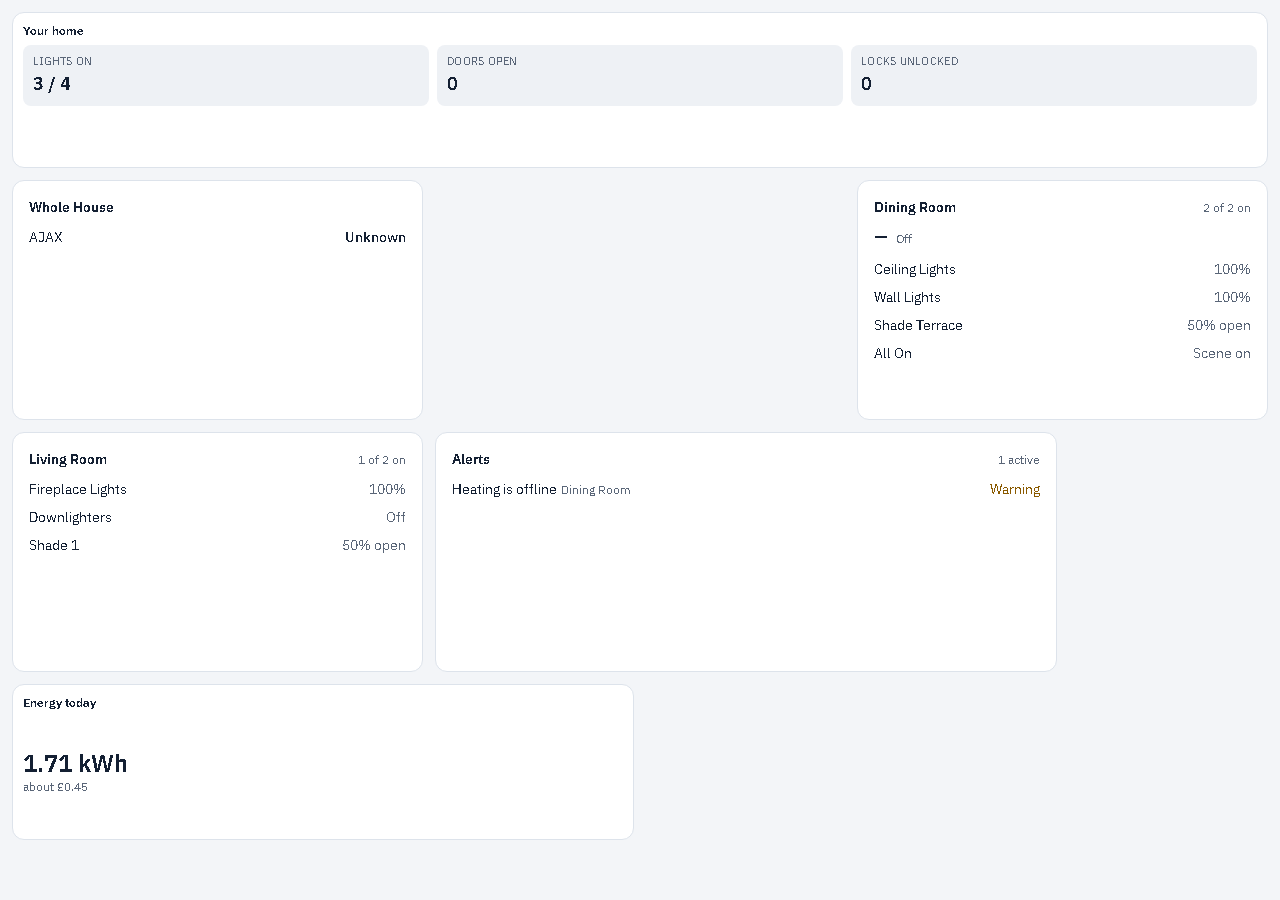
A touch on a dimmed screen brings it back to full brightness for two minutes.
Kiosk mode is switched on by the link. In Share with homeowner, choose the dashboard under Dashboard for this link, tick Wall tablet, and open that link or scan its QR code on the tablet. Without a saved dashboard, a Wall tablet link opens the Overview full screen, without screen-on or dimming. To leave kiosk mode, open a link made without the tick.
Also set the tablet itself to stay awake while charging. Some browsers don't let a page keep the screen on. If the tablet's browser loses touch with the processor, the page keeps trying every 15 seconds and carries on when it's back.